


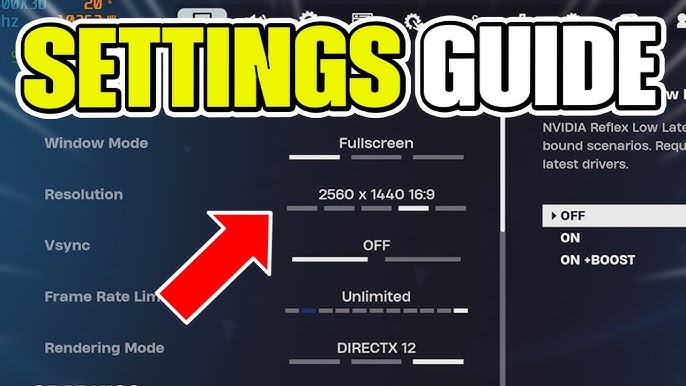
Understanding PC game settings is essential for every gamer who wants smooth gameplay, better graphics, and maximum performance. Whether you are playing competitive shooters, open-world RPGs, or strategy games, the right settings can make a huge difference in your experience.
PC games come with a wide range of adjustable options—from graphics and resolution to controls and audio. These settings allow you to tailor the game according to your hardware and personal preferences. Optimizing PC game settings is especially important for mid-range PCs that need a balance between performance and visual quality.
Every gamer has a different priority: some prefer ultra-realistic graphics, while others prioritize frame rates for competitive advantages. Learning how to tweak PC game settings ensures you get the best of both worlds.
Importance of Optimizing PC Game Settings
Performance and Frame Rate
Adjusting PC game settings directly impacts frame rates. Higher frame rates make games feel smoother, particularly in fast-paced genres like first-person shooters or racing games. Lag-free gameplay provides a competitive edge and reduces motion sickness in fast-action scenarios.
Graphics Quality
From textures to shadows, lighting, and anti-aliasing, PC game settings determine how visually appealing a game is. Players with high-end GPUs can enjoy maximum settings for realistic visuals, while those on older systems can tweak settings to maintain performance without sacrificing too much quality.
Custom Controls and Accessibility
Many games allow customization of controls, key bindings, and UI elements. PC game settings ensure that players can play comfortably, avoid hand fatigue, and access important game information quickly. This is especially critical in MMOs or strategy games where quick reactions and visibility are crucial.
Key PC Game Settings to Adjust
Here’s a detailed overview of essential PC game settings and how they affect gameplay:
| Setting | Description | Impact on Gameplay |
|---|---|---|
| Resolution | Screen pixels displayed | Higher resolution improves visuals but may reduce FPS |
| V-Sync | Synchronizes frame rate with monitor | Prevents screen tearing but may add input lag |
| Anti-Aliasing | Smoothens edges | Higher settings improve visuals but use more GPU |
| Texture Quality | Detail level of in-game surfaces | Higher quality improves immersion but increases memory usage |
| Shadow Quality | Realism of shadows | Higher shadows look realistic but reduce FPS |
| Motion Blur | Simulates camera motion | Can enhance visuals but may affect performance |
| FOV (Field of View) | Viewing angle of the camera | Wider FOV helps in FPS games, can affect performance |
| Audio Settings | Volume, surround sound, voice chat | Impacts immersion and communication |
Adjusting Graphics for Your Hardware
Low-End PCs
For gamers with entry-level hardware, tweaking PC game settings is crucial to achieve playable frame rates. Reducing texture quality, shadows, and anti-aliasing can significantly improve performance. Many games also have “Performance Mode” to automatically optimize settings for low-end systems.
Mid-Range PCs
Players with mid-tier systems should balance graphics and performance. Using medium to high textures, moderate anti-aliasing, and enabling selective effects like shadows and reflections can maintain good FPS while keeping visuals appealing.
High-End PCs
High-end systems allow most settings to be maxed out. Ultra graphics, ray tracing, and high-resolution textures are possible. Gamers can also enable 4K resolution and advanced visual effects for cinematic experiences. PC game settings customization ensures these features run smoothly without bottlenecks.
Optimizing FPS with PC Game Settings
Frame rates are critical in competitive gaming. To improve FPS:
-
Lower shadow and reflection quality
-
Disable motion blur and depth of field
-
Reduce post-processing effects
-
Adjust resolution scaling
These adjustments maintain smooth gameplay without a noticeable drop in visual quality. PC game settings offer fine control over performance tuning to match your monitor’s refresh rate and hardware capabilities.
Advanced PC Game Settings
Ray Tracing
Ray tracing simulates realistic lighting, shadows, and reflections. Enabling it enhances immersion but can drastically reduce performance. Adjust ray tracing settings based on GPU capabilities to avoid frame drops.
Texture Streaming
High-quality textures load dynamically in open-world games. Adjust PC game settings to control streaming quality, improving load times and reducing stutters in large environments.
Anti-Cheat and Network Settings
Competitive games like FPS and battle royale titles offer network settings to reduce lag and latency. Enabling reduced ping modes and optimizing server regions improves real-time responsiveness.
Audio and Control Settings
Audio settings impact both immersion and gameplay efficiency. 3D sound helps locate enemies, while adjusting voice chat settings ensures clear communication in multiplayer games. PC game settings also allow key remapping and controller calibration to fit personal play styles.
Common Mistakes in PC Game Settings
-
Leaving default settings without adjusting for hardware
-
Using ultra graphics on low-end PCs, causing stutter
-
Ignoring V-Sync, leading to screen tearing
-
Forgetting to calibrate audio for positional accuracy
Avoiding these mistakes ensures smoother and more enjoyable gameplay.
Mobile-Friendly and Cloud Gaming Considerations
PC game settings are now relevant in cloud gaming and mobile streaming as well. Adjusting streaming quality, input delay compensation, and resolution scaling optimizes gameplay for devices with lower local processing power.
Table: Recommended PC Game Settings for Different Hardware
| Hardware Tier | Graphics Settings | Target FPS | Recommended Features |
|---|---|---|---|
| Low-End PC | Low textures, shadows off, anti-aliasing off | 60 FPS | Resolution scaling, reduced effects |
| Mid-Range PC | Medium textures, moderate shadows, AA x2 | 60-120 FPS | Motion blur optional, medium reflections |
| High-End PC | Ultra textures, shadows on, AA x8, ray tracing | 120+ FPS | 4K resolution, max visual effects |
Updating Drivers and Game Patches
Keeping graphics drivers and games updated is essential. New patches often optimize PC game settings and fix bugs, improving performance and stability. NVIDIA, AMD, and Intel regularly release driver updates that enhance FPS, reduce stutter, and improve compatibility with modern games.
Community and Expert Guides
Many games have official and community-recommended PC game settings guides. Forums, YouTube tutorials, and Discord servers provide insights into optimal settings for competitive advantage, visual fidelity, and smooth gameplay.
Read also:
games of berkeley
free addicting games
highly compressed pc games
skillmachine.net